ZArchiver
ZDevs
Jan 24, 2012
Dec 17, 2025
5,2 MB
1.0.10
5.0+
50.000+

Description
Introduction to ZArchiver APP APK
In today’s digital world, handling compressed files is essential, whether you’re organizing documents, backing up media, or sharing large data packages. ZArchiver stands out as one of the most powerful and lightweight archive management tools for Android, allowing users to easily compress and decompress files without needing a computer. From ZIP and RAR to 7z and ISO formats, ZArchiver supports a wide range of archive types and brings desktop-level functionality to mobile devices. Scroll down to discover all the ways ZArchiver can simplify your file handling tasks.
What are the outstanding features of ZArchiver APK?
- Extensive Format Support: ZArchiver supports a remarkably wide range of compression formats. You can create and extract archives in formats like ZIP, 7z, TAR, GZIP, BZIP2, XZ, and ZST. Decompression extends to rar, rar5, ISO, arj, cab, lha/lzh, rpm, deb, cpio, and more making it versatile for almost any file type.
- Password Protection & Security: When dealing with sensitive documents, ZArchiver lets you encrypt and password‑protect your compressed files. This means only authorized users can access your archived data, adding an extra layer of privacy.
- Preview & Edit Without Extracting: Before fully extracting a compressed file, you can preview its contents to check what’s inside saving time and storage. You can also edit existing archives (add/remove files) without decompressing the whole package.
- Fast Performance & Multi‑Threading: ZArchiver utilizes multi‑threading support where available, allowing for faster compression and extraction on devices with multi‑core processors.
- Built‑In File Explorer Tools: More than an archiver, ZArchiver gives you basic file management capabilities copy, move, rename, delete, create folders, and organize files on your device.
- Extract Parts & Install Components: The app can handle multi‑part archives (e.g., part1.rar, .001 files) and supports extracting split files. It also lets you install APK/OBB files directly from backups.
- Latest Usability Enhancements (UI & Themes): With the most recent updates, features like drag‑and‑drop file organization, SUI support, and an E‑Ink theme have been introduced for better usability across devices.
Pros and Cons of ZArchiver APK
1. Pros
- Wide Format Support: Handles a large variety of archive types, including ZIP, RAR, 7z, TAR, and more, making it versatile for different file tasks.
- User‑Friendly Interface: The app’s clean and intuitive design makes navigation and file operations easy, even for beginners.
- Password & Security Features: You can create and open password‑protected archives for added security.
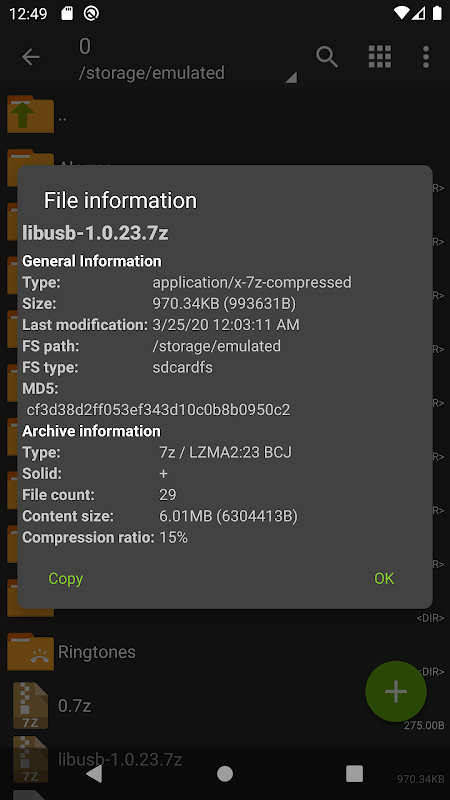
- Preview Before Extracting: Lets you view the contents of archives before extraction, saving time and storage space.
- No Internet Permissions: Works offline and does not access the internet, which can be important for privacy‑conscious users.
- Multi‑Part & Advanced Handling: Supports multi‑part archives (split files) and offers useful features like drag‑and‑drop and E‑Ink compatibility.
2. Cons
- Minor Usability Quirks: Some users report occasional file movement/copy errors and handling nuances (e.g., folder tapping behavior).
- Not Open Source: While it doesn’t transmit data, it isn’t open source, which may concern some advanced security users.
- Basic Interface for Advanced Users: Although simple, the interface lacks deep advanced file‑editing tools found in more developer‑focused file managers.
- Ad Presence in Free Version: The free variant may show ads; removing them typically requires upgrading or using the Donate version.
How to Use ZArchiver for Beginners
Getting started with ZArchiver is simple, even if you’ve never managed compressed files before. The app is built around a straightforward file browser that feels similar to a regular Android file manager, once you know a few basic actions, you’ll be handling ZIP, RAR, 7z and many other formats quickly.
1. Open ZArchiver and Navigate to Your Files
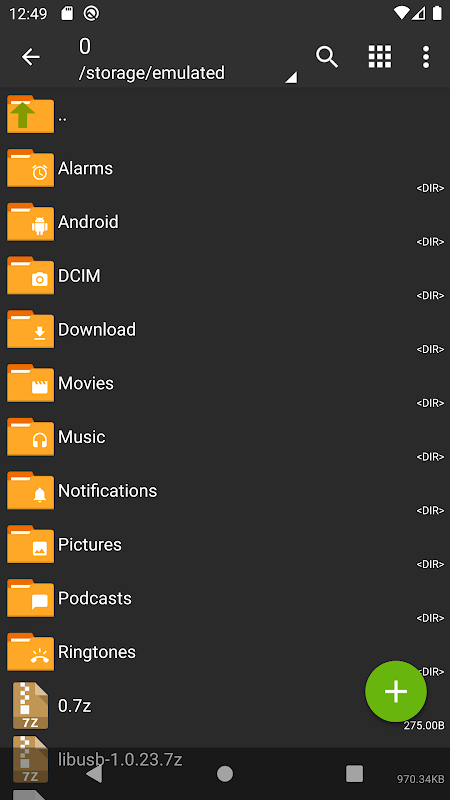
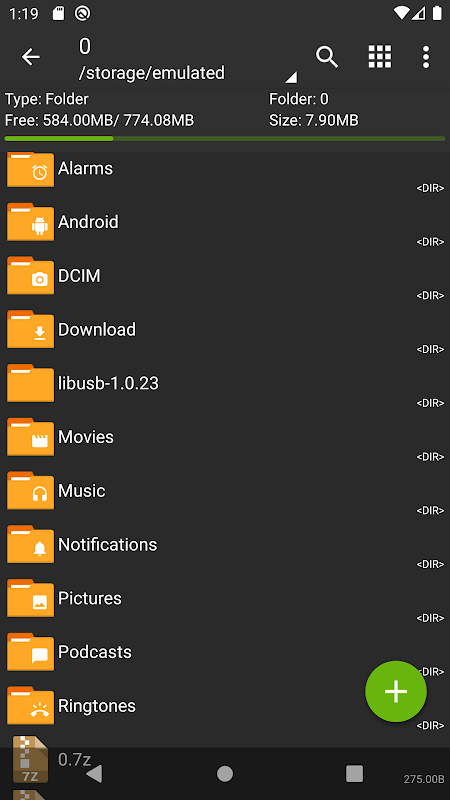
After installing the app, launch it and you’ll see a list of folders and files stored on your device.
Tap through folders just like you would in a file explorer until you find the archive you want to open or the files you need to compress.
2. Viewing or Extracting Files
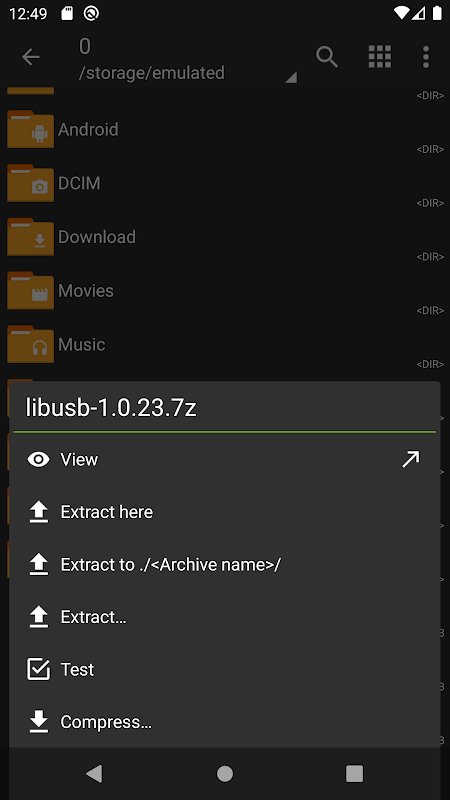
To open or unzip a compressed file, simply tap it. You’ll be presented with options such as:
- Extract here: places all contents into the current folder
- Extract to…: lets you choose a specific folder for the extracted files
- View: lets you look inside the archive without extracting anything first
This makes it easy to inspect or access files without cluttering your storage.
3. Compressing Files
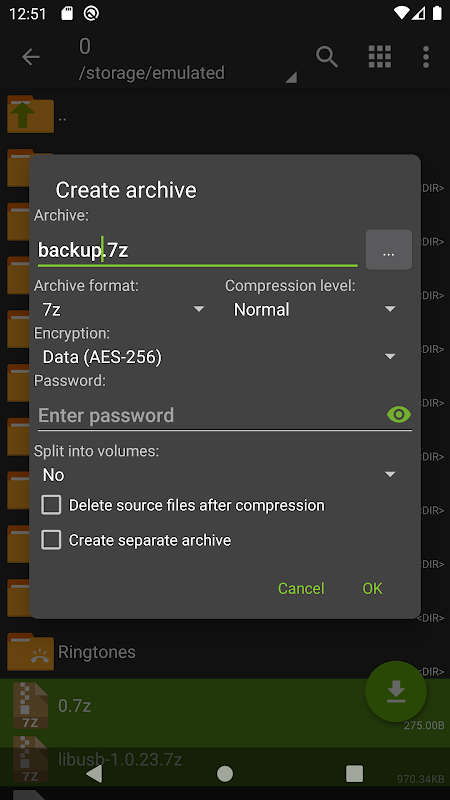
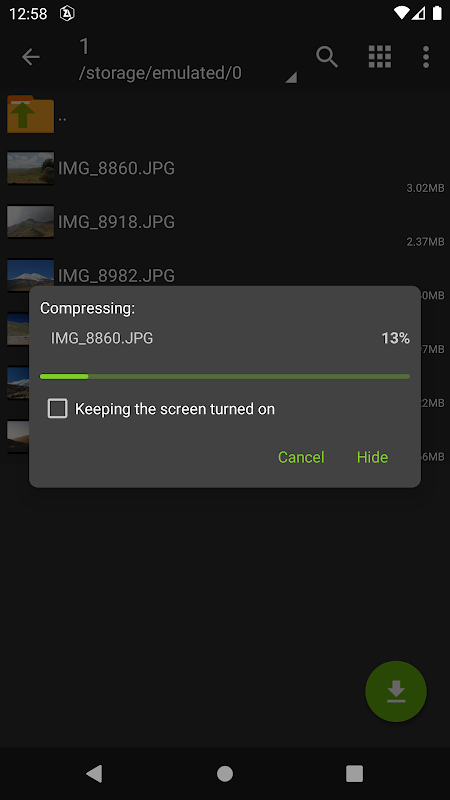
If you want to create a new compressed file, long‑press the file or folder you want to include, then choose Compress or Create archive from the menu.
You can:
- Enter a name for your archive
- Choose the format (like ZIP or 7z)
- Optionally set a password if you want extra security
Once configured, confirm to start creating the archive.
4. Selecting Multiple Files
To manage more than one file at once (for example, to compress several at once), long‑press a file to enter “multi‑select” mode. Then tap other files you want to include before choosing your action (compress, delete, move, etc.).
5. Useful Tips for Beginners
- Preview inside archives before extracting to save space and time.
- Use “Extract to…” when organizing multiple archives to keep things neat.
- Try different compression formats (like 7z for better space savings) if needed during creation.
With these basic steps, you can confidently extract downloaded archives, compress folders to save storage, and organize files on your Android device with ZArchiver — even if you’ve never used a file archiver before.
Tips for Smart Use of ZArchiver APK
To get the most out of ZArchiver and make your archive management faster, safer, and more efficient, try these smart tips and best practices:
- Organize Before You Extract: Instead of extracting everything directly to the default folder, create a dedicated folder first. This keeps your files tidy and avoids accidentally mixing extracted items with other files on your device.
- Preview Archive Contents: Before fully extracting a large or unfamiliar archive, use ZArchiver’s preview feature to see what’s inside. This helps you avoid unnecessary extractions and saves storage space.
- Use Partial Extraction: If you only need a specific file or folder from within a big archive, choose the partial extract option instead of decompressing the entire archive. This saves time and storage, especially on mobile devices with limited space.
- Choose the Right Compression Level: When creating archives, balance size vs speed by adjusting compression levels. Use Normal or Fast for everyday backups, and Maximum only when you need the smallest possible file size.
- Secure Sensitive Files: Take advantage of ZArchiver’s password protection and encryption features when storing or sending personal documents. Encrypting archives adds a layer of security when sharing files via email or messaging.
- Enable File Thumbnails Carefully: Turning on file thumbnails in settings helps you quickly identify images and videos inside folders, but on large directories this can slow down navigation. Only enable it when needed.
Conclusion
ZArchiver transforms your Android device into a powerful hub for managing compressed files. Its wide format support, password security, preview capabilities, and intuitive interface make it ideal for both casual and professional users. Whether you are trying to free up space, access archived email attachments, or secure important files, ZArchiver delivers a complete and fast solution. Download ZArchiver now and take full control of your compressed data on Android.
FAQs
1. How do I password-protect an archive in ZArchiver APK?
You can password-protect an archive by selecting the “Set password” option while creating a new compressed file. Enter and confirm your password before saving.
2. Can I create multi-part archives with ZArchiver APK?
Yes, ZArchiver allows you to create multi-part archives (e.g., .001 files) for easier file splitting and sharing.
3. Can ZArchiver APK extract encrypted files?
Yes, ZArchiver can extract encrypted archives as long as you have the correct password.
4. How can I view the contents of an archive without extracting it?
Simply open the archive with ZArchiver, and you will be able to view its contents without needing to extract the files.
5. Does ZArchiver APK support file drag and drop?
Yes, ZArchiver supports drag-and-drop functionality for organizing files and archives within the app.
What's new
- Speed improvements for file operations.
- Added SUI support for simpler navigation.
- New E‑Ink theme for enhanced visibility.
- Drag‑and‑drop file support within the app.
- Miscellaneous bug fixes and performance improvements.
Images