Winlator
Description
In the ever-evolving world of mobile technology, finding ways to enhance the capabilities of Android devices is always exciting. One such way is using Winlator, an Android app emulator designed to bring Windows apps and games to your mobile device. In this article, we’ll explore Winlator in detail, from how it works to its key features and how you can use it to run Windows-based software directly on Android. Discover it now.
What Is Winlator APK?
Winlator is an Android emulator tools that enables you to run Windows (x86/x64) applications and games on your Android device. It achieves this by emulating a Windows-like environment using open-source technologies such as Wine and Box86/Box64. Unlike cloud-based solutions, Winlator runs Windows software locally on your Android device without the need for constant internet connectivity.
The tool is especially useful for gamers looking to run PC games on mobile devices or users who need access to specific Windows-only applications but don’t have access to a desktop PC. It’s an effective and unique way to experience desktop software while on the go.
Key Features of Winlator APK Latest Version
1. Run Windows x86/x64 Applications
With Winlator, you can run most Windows desktop applications that you would typically use on a PC, such as productivity software, utility apps, and more. It brings Windows functionality to Android without needing a PC. Some popular types of applications you can use include:
- Office suites like Microsoft Word and Excel
- Design software like Photoshop or GIMP
- Development tools such as Visual Studio
2. Play PC Games on Android
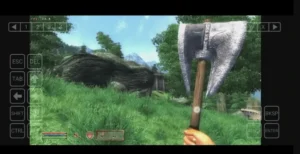
For gamers, Winlator offers a fantastic opportunity to run PC games on Android. Older games, in particular, are well supported, but newer ones may not be as optimized due to hardware limitations. With Winlator, you can enjoy popular titles like Fallout 3, Deus Ex, and The Elder Scrolls: Oblivion on your phone or tablet.
3. Configurable Performance
Winlator gives users complete control over the performance of each app or game. You can adjust graphics settings, resolution, and even CPU performance to achieve the optimal experience for your device. By tweaking these settings, you can improve the frame rate, graphic quality, and overall user experience.
4. Input Support
One of the standout features of Winlator is its comprehensive support for various input methods. Whether you prefer to use:
- Touch controls
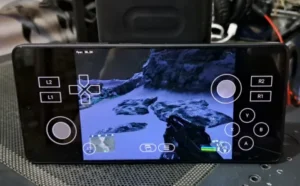
- External Bluetooth controllers
- Keyboard and mouse
Winlator is designed to accommodate all types of input for a more seamless and enjoyable experience.
Offline App Usage
Once Winlator is installed and set up, you can use it offline. This means that you don’t need to stay connected to the internet to run Windows applications or games, making it an ideal solution for mobile gaming or using essential software while on the go.
How to Use Winlator for Beginners
If you’ve never used Winlator before, getting started may seem intimidating, but the process is straightforward once you understand the core steps. At its essence, using Winlator involves installing the app, creating a virtual Windows environment (container), and then launching apps or games inside it. Here’s a clear, beginner‑friendly walkthrough:
1. Download & Install Winlator
First, you’ll need the Winlator APK file. You can get the latest release from official sites. After downloading the APK:
- Open your file manager and allow installation from unknown sources if prompted.
- Tap the APK to begin installation.
- Launch Winlator once installation completes, it will create necessary folders and request permissions.
2. Add the OBB Data (If Required)
Winlator often comes with an OBB expansion file that contains large runtime libraries. After the initial app install:
- Use your file manager to locate the OBB file you downloaded.
- Move it into the folder:
/storage/emulated/0/Android/obb/com.winlator - Relaunch Winlator to let it detect and complete the OBB installation.
3. Create Your First Container
Once Winlator is set up, the next step is to create a container, this acts like a virtual Windows space where your apps will run.
- Open Winlator and tap the “+” button to create a new container.
- Give it a name (for example, “Games” or the name of the app you plan to run).
- Choose suitable settings like screen resolution and graphics driver. Lower resolution and the appropriate driver (e.g., Turnip for Adreno GPUs) can improve performance.
4. Install or Add Windows Apps/Games
With your container ready, it’s time to bring in Windows software:
- Place the Windows .exe installer or game setup files in a folder accessible on your Android device (e.g., Downloads/).
- Inside Winlator, open the container and navigate to your files.
- Run the
.exeinstaller just like you would on a PC, Winlator will emulate the setup process inside the container.
Many beginner tutorials recommend keeping game or app files on internal storage rather than external SD cards for performance reasons.
5. Launch & Tweak Settings
Once installed:
- You can launch the app or game from within the container.
- Many Windows applications will appear with a Windows‑style interface inside Winlator.
- If performance is slow or graphical glitches occur, adjust container settings (resolution, graphics driver, or DirectX backend) to find a balance between speed and quality.
6. Create Shortcuts (Optional but Helpful)
For frequently used programs or games, Winlator lets you create shortcuts that appear on your Android home screen. This saves you from entering the container each time and makes launching your favorite software faster.
How is Winlator’s user experience and user interface?
Winlator’s interface is designed with practicality in mind, especially for users who want to interact with Windows software on touchscreen devices. The user interface is relatively intuitive and easy to navigate, although it’s not the traditional Android app interface you often see in popular mobile applications. Users appreciate the interface clearly displaying essential core functions, such as creating containers, adjusting settings, and launching apps or games, without unnecessary clutter. This makes initial setup and daily use much simpler than other alternatives in this field.
The UX focus is on functionality first, with menus and options arranged around the most important tasks. You will find:
- Clear buttons for container creation and management, helping you organize different Windows environments.
- Settings panels that adjust performance and emulation parameters, such as screen resolution or graphics drivers, with labels that are purposeful and technical but generally understandable for users familiar with emulation concepts.
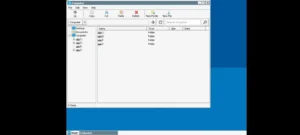
- A file management view that mimics a basic Windows desktop experience inside the emulator, which feels familiar for those who have used a PC.
Because Winlator emulates a Windows-like desktop environment, the experience may at times feel more like using a light desktop interface than a typical Android app. For example, navigating file structures or launching software inside a container resembles a basic PC workflow. This can be a positive for users familiar with Windows, but might require a short adjustment period for others.
Touch interactions and control responsiveness can vary depending on the device and the app you’re running. For traditional desktop applications, touch support is functional but can feel less natural compared to mouse and keyboard input, so many users pair external input devices for a smoother experience.
Conclusion
Winlator is a fantastic tool for those looking to bring Windows software and games to their Android devices. With its powerful emulation stack and customizable performance options, it provides an unparalleled level of control over running Windows applications on Android. While it may not support all software and newer games, it remains a top choice for users who want to bridge the gap between Windows and Android. Download Winlator today and take the power of Windows wherever you go!
FAQs
1. What is Winlator APK?
Winlator is an Android emulator that lets you run Windows x86/x64 applications and games directly on Android devices using Wine and Box86/Box64 technologies.
2. How does Winlator APK work?
Winlator translates Windows applications into a format compatible with Android devices, using a combination of emulation and virtualization technology.
3. Can Winlator APK run Windows games?
Yes, Winlator supports many Windows games, especially older or less graphically demanding ones, as well as some modern titles with proper configuration.
4. Is Winlator APK free to use?
Yes, Winlator is an open-source project and can be downloaded and used for free.
5. How do I install Windows programs on Winlator?
Simply download the Windows .exe file, set up a container in Winlator, and manually load the application. Follow the on-screen instructions for setup.
What's new
- Updated Wine & Box86/Box64 core libraries.
- Improved graphics and Vulkan driver compatibility.
- Bug fixes and performance improvements over previous versions.
- Better container setup and stability enhancements.
Images