GameHub Emulator
Description
What Is GameHub Emulator APK?
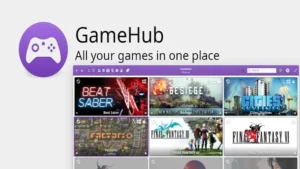
GameHub Emulator is an Android tools app designed to bring Windows and PC games to your mobile device. By leveraging emulation technology and cloud gaming, it allows Android users to experience high-quality PC gaming directly on their phones and tablets. Whether you’re looking to run your favorite Steam games or access local files, GameHub Emulator offers various methods to enjoy your gaming library without needing a powerful PC.
In essence, GameHub Emulator combines multiple technologies:
- Local Emulation: Running PC games directly on your Android device.
- Cloud Gaming: Playing games streamed from the cloud to reduce storage usage and optimize performance.
- PC Streaming: Remotely playing games from your own PC on your Android device.
Key Features of GameHub Emulator APK Latest Version
1. PC Game Emulation on Android
The primary feature of GameHub Emulator is its ability to run Windows games on Android using emulation technology. This allows you to experience high-quality PC games on your mobile device without requiring a powerful gaming PC. The emulator supports x86 emulation, enabling you to run a wide variety of PC games natively on your Android device, including both AAA titles and indie games.
2. Steam Library Integration
One of the standout features of GameHub Emulator is its ability to seamlessly integrate with your Steam library. By logging into your Steam account, you can directly download and install games you already own, bringing your Steam gaming experience to your Android device. Additionally, it supports Steam Cloud save synchronization, allowing you to maintain your game progress across multiple devices, whether you’re playing on your PC or mobile device.
3. Multiple Play Modes
GameHub Emulator offers three distinct ways to enjoy games on your Android device:
- Local Emulation: Games run directly on your Android device.
- Cloud Gaming: Play games streamed from the cloud, reducing the strain on your device.
- PC Remote Streaming: Stream games from your own Windows PC to your Android device, providing flexibility for remote play.
4. Controller & Input Support
To enhance the gaming experience, GameHub Emulator supports various input methods. You can use the on-screen touch controls, but for a more immersive experience, you can connect external devices like Bluetooth controllers, USB controllers, and even a keyboard and mouse. This makes playing complex PC games on your mobile device much easier and more intuitive.
5. Performance Enhancements
GameHub Emulator strives to deliver smooth gameplay by automatically detecting your device’s hardware and optimizing performance settings. By configuring drivers and hardware settings automatically, it ensures that the games you play perform well on your Android device. For high-end devices, this can result in a fluid gaming experience with frame rates as high as 60 FPS or more.
6. Game Installation Methods
Installing games on GameHub Emulator is straightforward. You can either:
- Download directly from Steam: Install games directly from your Steam library.
- Manually add games: Upload game files from your PC or download them from other sources.
This versatility makes GameHub Emulator compatible with a broad range of games, giving users flexibility in how they access their gaming library.
7. Built-In Tools for Recording & Sharing
For content creators or anyone looking to share their gameplay, GameHub Emulator includes tools for recording and sharing gameplay. You can record your gaming sessions, capture high-quality clips, and share them with friends or upload them to social media platforms.
Pros & Cons of GameHub Emulator APK
1. Pros:
- Easy Setup: The app is simple to set up, even for users who are new to game emulation.
- Seamless Steam Integration: Direct access to your Steam library makes it easy to install and play games.
- Multiple Play Options: Choose from local emulation, cloud gaming, or PC streaming based on your needs.
- Controller Support: Supports Bluetooth, USB controllers, and keyboards, providing flexibility.
- Performance Optimization: Auto-configured settings help games run smoothly on various devices.
2. Cons:
- Hardware Demands: High-end games may require powerful devices for smooth gameplay.
- Occasional Performance Issues: Some games may not run optimally on lower-end devices.
- Cloud Gaming Limitations: Requires a stable internet connection for cloud gaming, which may not always be reliable.
Tips for Smart Use of GameHub Emulator APK
To get the most out of GameHub Emulator APK, here are some practical insights that can help you achieve smoother gameplay, better performance, and an overall more enjoyable experience.
- Keep the App Updated: Staying on the latest version of GameHub ensures you benefit from performance improvements, compatibility patches, and new features. Developers frequently release updates that fix bugs and improve stability, preventing crashes and latency issues while playing demanding titles.
- Adjust Graphics and Performance Settings: Smart graphics configuration makes a big difference: Lower resolution or reduce graphical effects on older or less powerful devices. Enable frame skipping if your phone struggles to maintain consistent frame rates; this sacrifices some frames to reduce lag. Experiment with GPU drivers and backend layers like Vulkan/DXVK, some combinations perform better on Snapdragon versus MediaTek chips. These adjustments can help balance visual quality with performance.
- Optimize System Resources: Before launching games via GameHub: Close background apps to free up RAM and CPU cycles. Ensure your device has sufficient free storage; low storage can slow down installation and gameplay. If your Android device supports performance mode in system settings, activate it to prioritize processing resources for the emulator. This helps reduce stuttering and frame drops.
- Customize Control Layouts: For touchscreen gameplay, reconfigure on-screen buttons and layouts to suit your preferences. Transparent or repositioned controls can improve visibility and responsiveness. If you have Bluetooth or USB controllers, connect them, external controllers usually offer better precision than touch controls.
- Clean the App Cache Periodically: Over time, accumulated cache data can slow down GameHub and affect load times. Clearing the cache from Android’s app settings can help improve responsiveness and reduce occasional glitches.
- Use Save Features Smartly: If the game supports cloud save synchronization (especially with Steam titles), take advantage of this to back up your progress. Having save states or syncing ensures you can resume games across devices without losing progress.
How to Use GameHub Emulator APK for Beginners (Step-by-Step)
If you’re new to GameHub Emulator, the idea of playing PC games on your Android device can seem technical, but it’s surprisingly approachable when you follow a clear process. Below is a beginner-friendly walkthrough based on how users typically get started with the emulator.
1. Install the App and Create Your Account
First, download GameHub Emulator from the Google Play Store or the official GameHub website. Once installed, open the app and create an account using your email or an external login method if prompted. This account will help you manage your library and settings. Tip: On some versions, you may need to enable installation from unknown sources if using an APK from the official website (outside the Play Store).
2. Sign into Steam (Optional but Useful)
One of GameHub’s most user-friendly features is its integration with Steam. Inside the app, navigate to the section that asks you to sign in to Steam. Enter your Steam credentials or scan a QR code from your Steam mobile app, this links your Steam library directly to GameHub.
Once linked:
- Your Steam games appear inside GameHub.
- You can download and install titles you already own.
- GameHub can sync your Steam Cloud saves, helping you continue progress across devices.
3. Navigate the Game Library
After signing in, you’ll see your game library, which lists:
- Steam games available to download
- Installed games ready to play
- Games you can launch or manage directly from the interface
Tap on a game to start installing it onto your Android device. GameHub handles most of the heavy lifting, downloading required files and preparing the game to run.
4. Install and Launch a Game
Once installation begins, just wait for the progress to complete. Afterward:
- Tap the game’s icon.
- Choose Play.
- Wait for it to load, emulation or streaming setup happens automatically in the background.
Some games may take a bit of time the first time you launch due to driver setups or compatibility layers being configured.
5. Optional: Add Non-Steam Games
If you have PC games outside of Steam (like DRM-free installs), you can often import them manually by pointing GameHub to the game’s executable (.exe) file you’ve transferred to the device or copied from your PC. In the app’s menu, choose Import or Add Game, navigate to the game’s folder, and select the executable to add it.
6. Configure Controls and Settings
Once a game launches, you can customize controls and performance:
- Map touch controls on the screen.
- Connect a Bluetooth or USB controller.
- Dive into settings to tweak resolution or compatibility layers if a game isn’t running smoothly.
Conclusion
For gamers who want a single app that can play both classic and modern titles, GameHub Emulator is an attractive option. Its powerful feature set, intuitive controls, and flexible performance options make it stand out in the Android emulator field. Whether you love classic games or want to experience PC gaming anytime, anywhere, GameHub provides a bridge between devices, experiences, and gaming styles. Ready to elevate your Android gaming experience? Download the latest version of GameHub Emulator now and unlock the full potential of your device!
FAQs
1. How do I install Steam games on GameHub Emulator APK?
Simply log into your Steam account within the app and download the games you own directly to your Android device.
2. Does GameHub support game controllers?
Yes, GameHub Emulator supports Bluetooth, USB controllers, and keyboards for a more immersive gaming experience.
3. Can I stream games from my PC using GameHub?
Yes, you can stream games from your PC to your Android device using the remote play feature.
4. Is GameHub Emulator free to use?
Yes, GameHub Emulator is free to download and use, although some features might require specific settings or devices.
5. What types of games can I play on GameHub Emulator APK?
You can play a wide variety of PC games, including Steam titles, indie games, and AAA games, depending on your device’s performance.
What's new
- Updated Android compatibility & improved stability.
- Enhanced cloud streaming integration.
- Better controller support and UI tweaks.
- Bug fixes & performance optimizations.
Images